Skip to content
El Registro de Jornada .com

Product

How the application looks

Real screenshots of every screen, with what it does explained in a few words. Pick what you want to do and see what it looks like.

I want to clock in

Clock in in two taps

Come in, take a break and leave. From your phone, your computer or a tablet at the door.

Clocking in

Status: Available

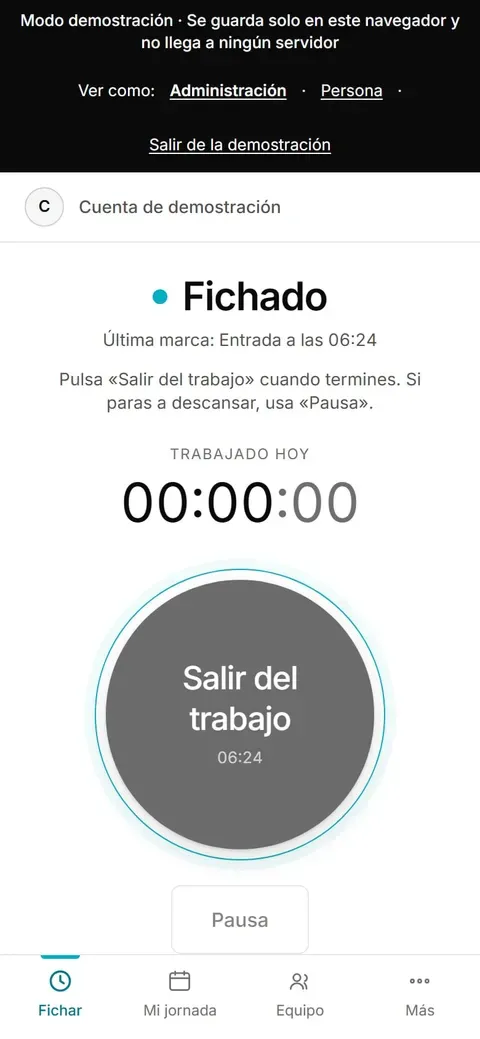
One big button to start, pause and finish. At the top, in large type, whether you are clocked in or not, and the time worked today. If there is no internet, the clock-in is saved and sent when it comes back.
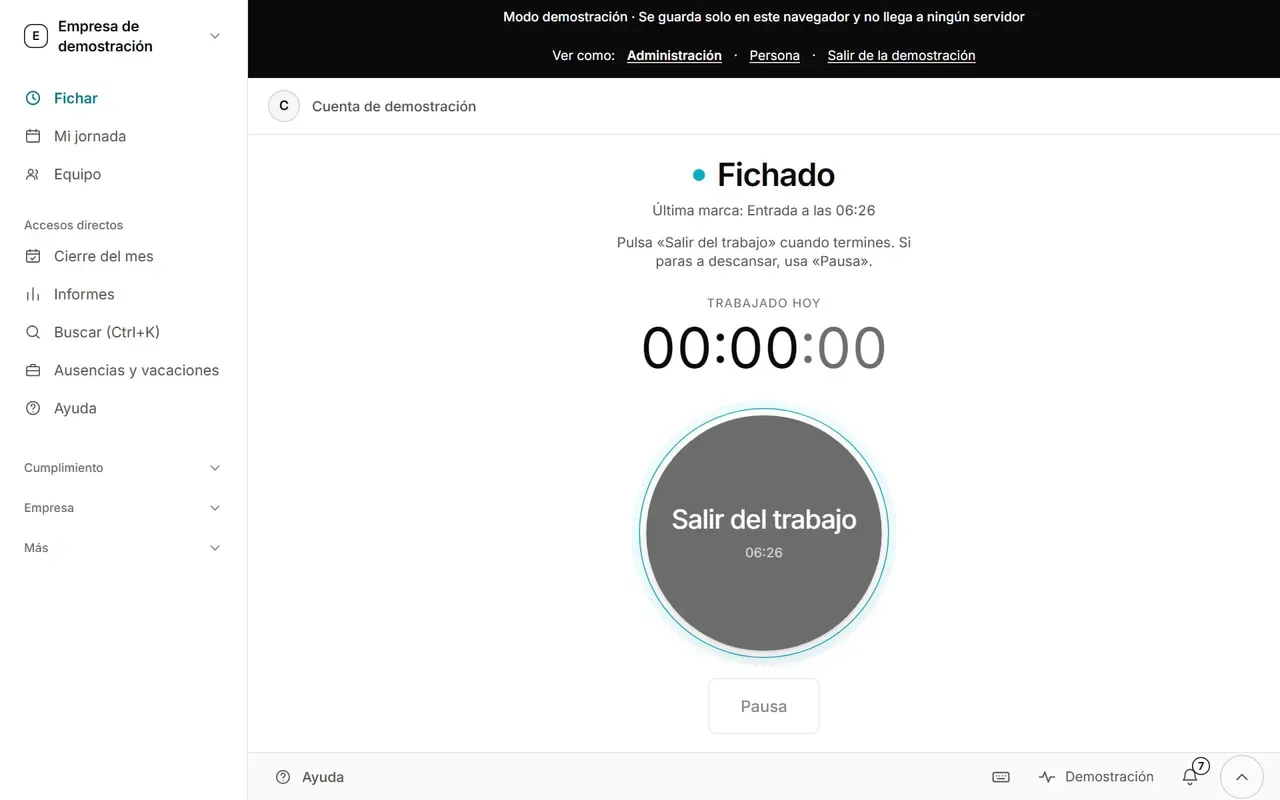
Clock-in screen. It shows the status «Fichado» (clocked in), the last mark «Entrada a las 06:24» (clock-in at 06:24), the counter of time worked today and a big round button «Salir del trabajo» (leave work) with the «Pausa» (break) button below it. (desktop version, sample data)
Clock-in screen. It shows the status «Fichado» (clocked in), the last mark «Entrada a las 06:24» (clock-in at 06:24), the counter of time worked today and a big round button «Salir del trabajo» (leave work) with the «Pausa» (break) button below it. (mobile version, sample data)

If you forget to clock in

Status: Available

If a day has no clock-out, the app tells you and asks what time it was, or whether you did not work that day. The correction is recorded with who made it and when. Clock-ins are never deleted: the correction is added separately.
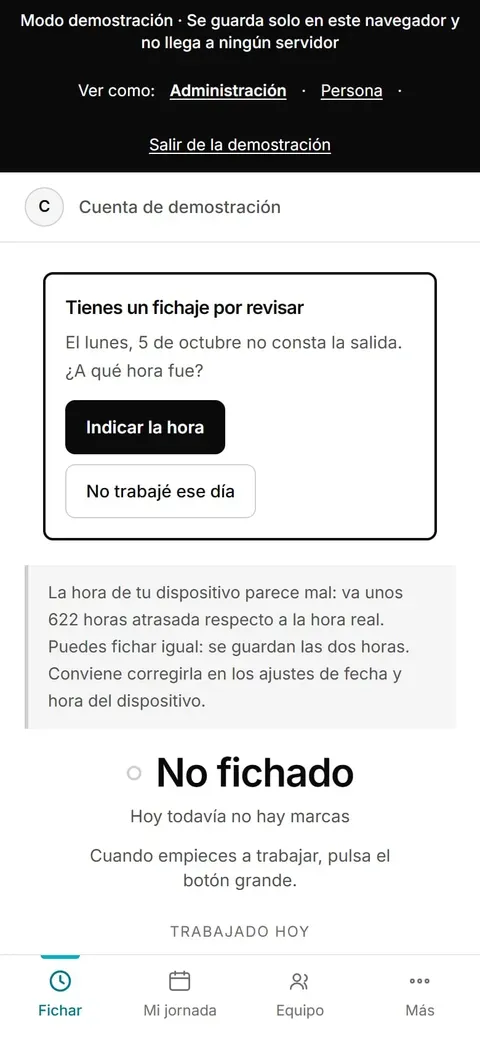
Clock-in screen on a phone with a box «Tienes un fichaje por revisar» (you have a clock-in to review): no clock-out on Monday 5 October, buttons «Indicar la hora» and «No trabajé ese día», and a warning that the device’s time looks wrong. (mobile version, sample data)

Kiosk at the door

Status: In demo

A tablet at the entrance. Each person clocks in with their PIN, with no fingerprint or camera. It suits teams without a phone.
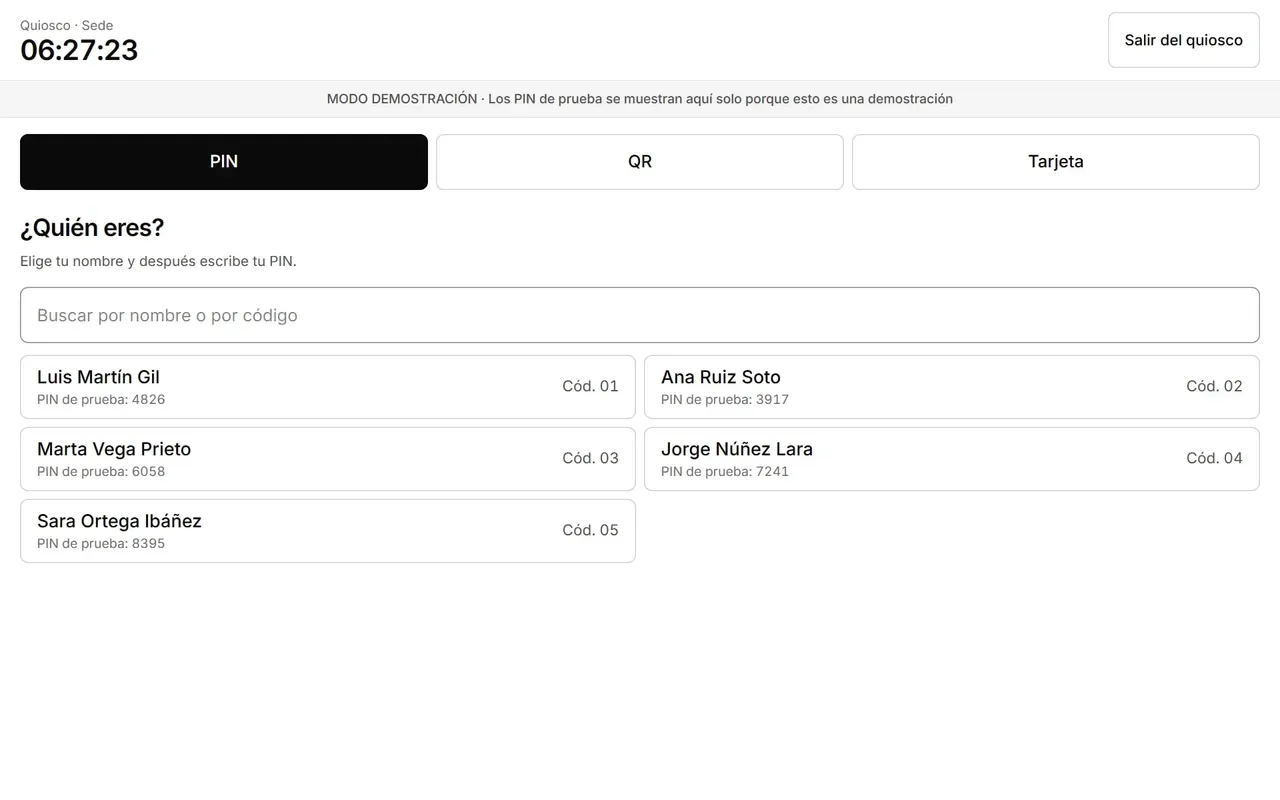
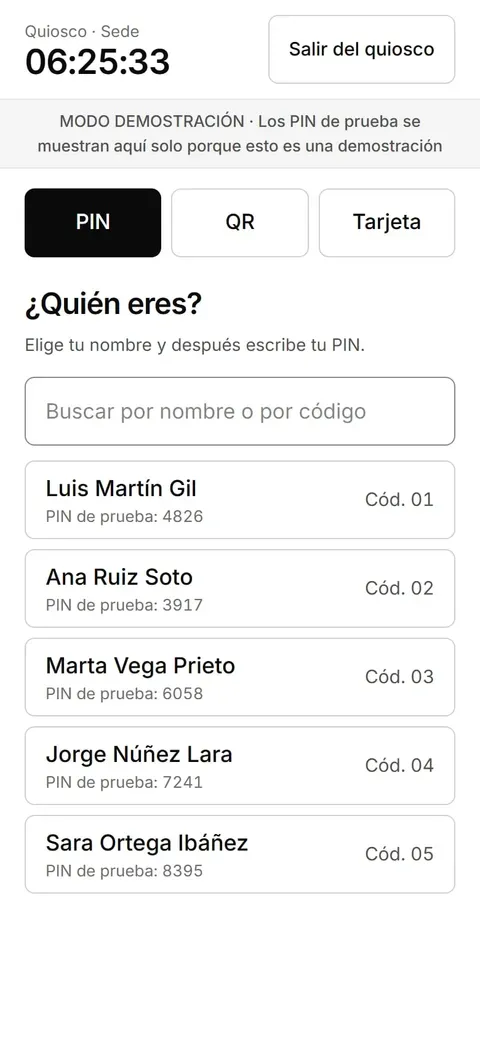
Kiosk screen with the time, three tabs «PIN», «QR» and «Tarjeta» (card), the title «¿Quién eres?» (who are you?) and a list of sample people, each with a code and a test PIN. (desktop version, sample data)
Kiosk screen with the time, three tabs «PIN», «QR» and «Tarjeta» (card), the title «¿Quién eres?» (who are you?) and a list of sample people, each with a code and a test PIN. (mobile version, sample data)

Managing the kiosk

Status: In demo

The company adds each person, changes PINs, sees who is locked out and checks that the kiosk clock is correct. A saved PIN cannot be seen, only changed.
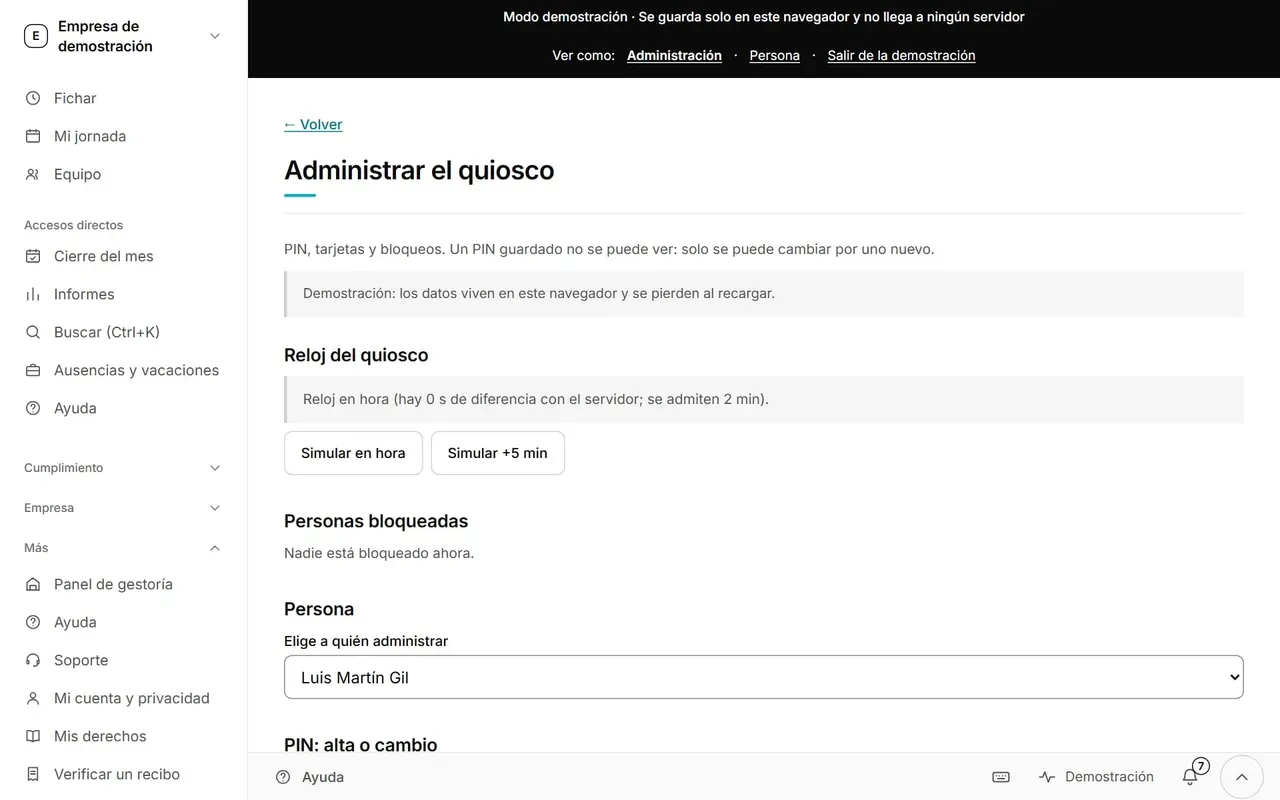
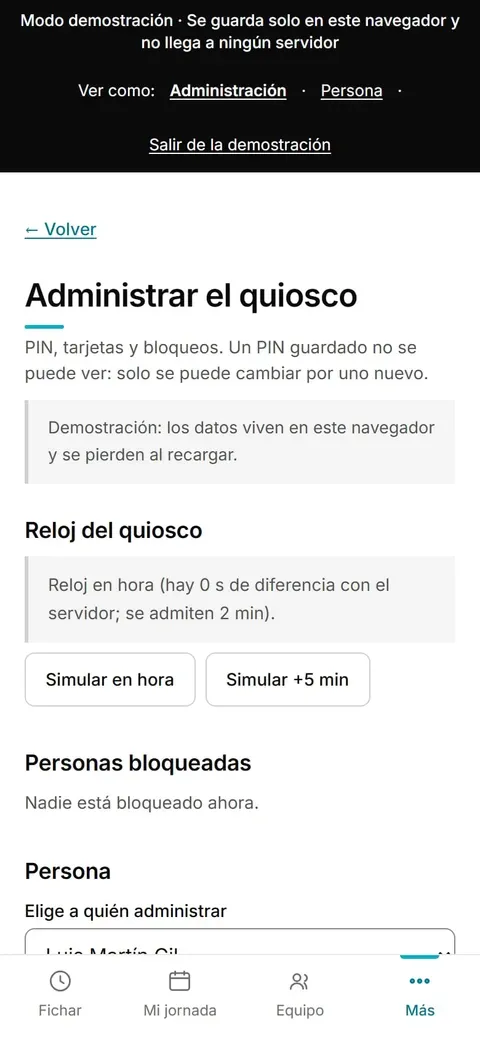
Screen for managing the kiosk: adding people and changing their PINs, lockouts and a check of the kiosk clock. (desktop version, sample data)
Screen for managing the kiosk: adding people and changing their PINs, lockouts and a check of the kiosk clock. (mobile version, sample data)

I want to see my hours

Your hours, clear

The person sees the same as the company sees: what they have worked, their shifts and their data.

My working day

Status: Available

Four tabs: today, this month, incidents and balances. You see the time worked, each clocked stretch and a signed receipt for every clock-in.
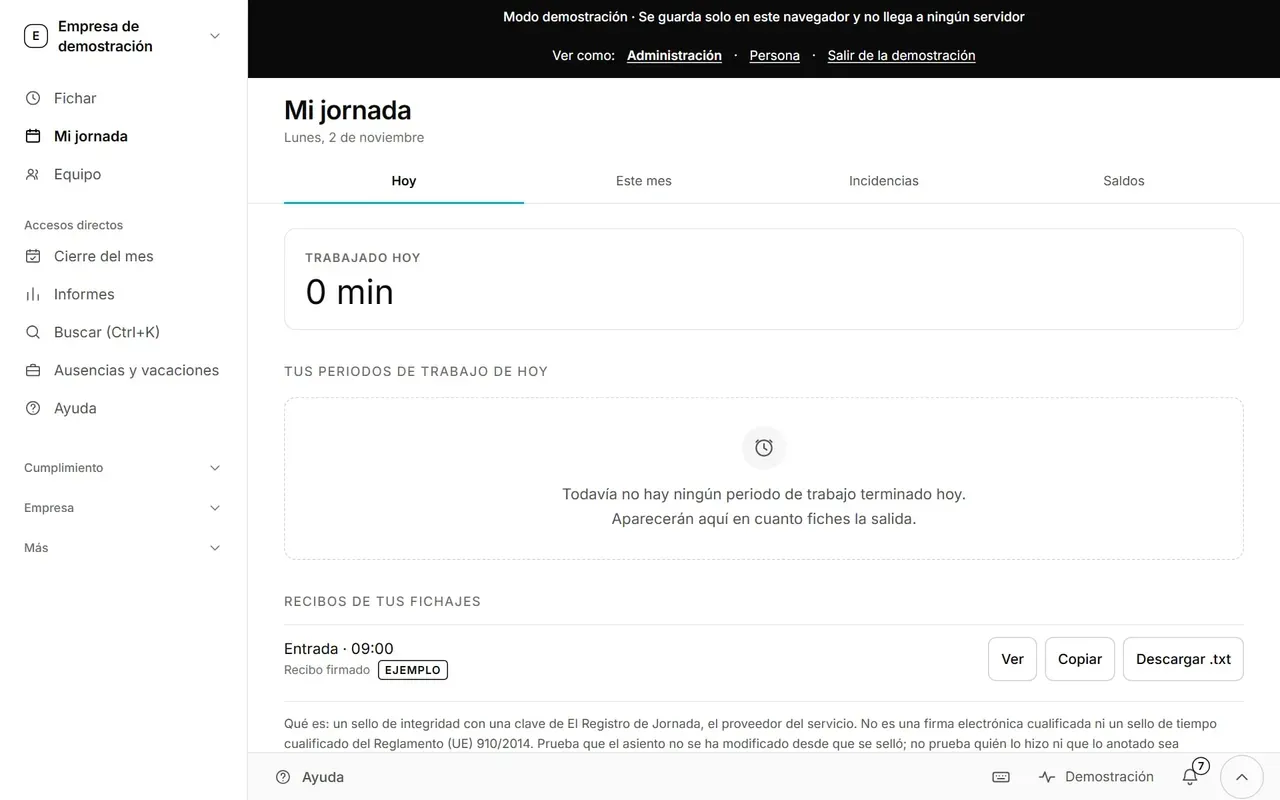
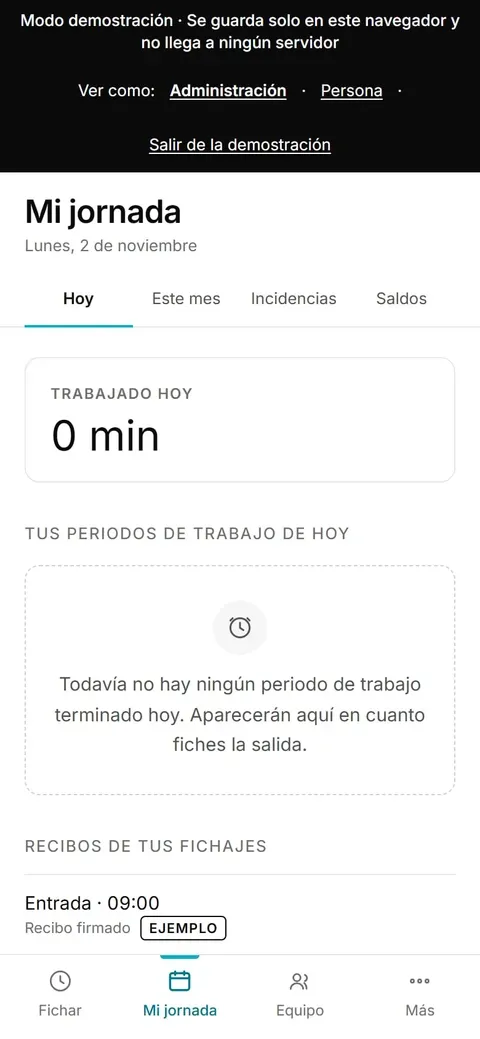
Screen «Mi jornada» (my working day) on a phone, with the tabs Hoy, Este mes, Incidencias and Saldos, the time worked today («0 min»), a notice of no finished periods yet and the clock-in receipts below. (desktop version, sample data)
Screen «Mi jornada» (my working day) on a phone, with the tabs Hoy, Este mes, Incidencias and Saldos, the time worked today («0 min»), a notice of no finished periods yet and the clock-in receipts below. (mobile version, sample data)

My shifts

Status: Available

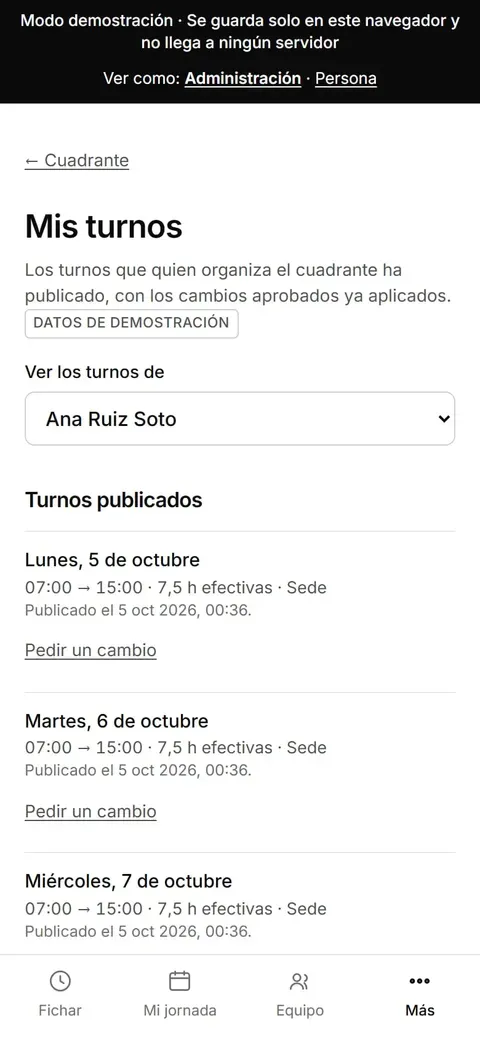
Which shift you have each day of the week, once the company publishes it.
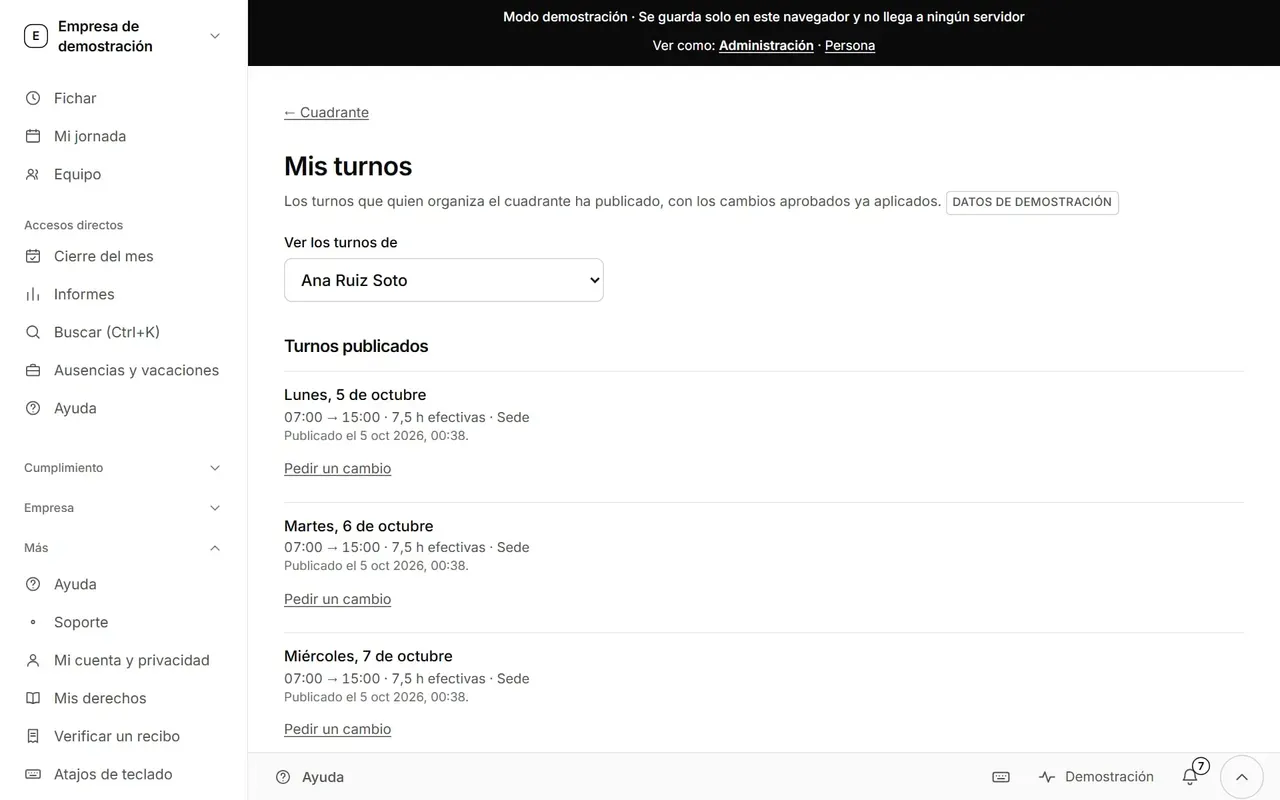
Screen «Mis turnos» (my shifts), with the days of the published week and the hours of each shift. (desktop version, sample data)
Screen «Mis turnos» (my shifts), with the days of the published week and the hours of each shift. (mobile version, sample data)

Shift notes

Status: Available

Notes that colleagues leave when they finish their shift, so whoever comes in knows what happened. Here they can only be read: they cannot be edited or deleted.
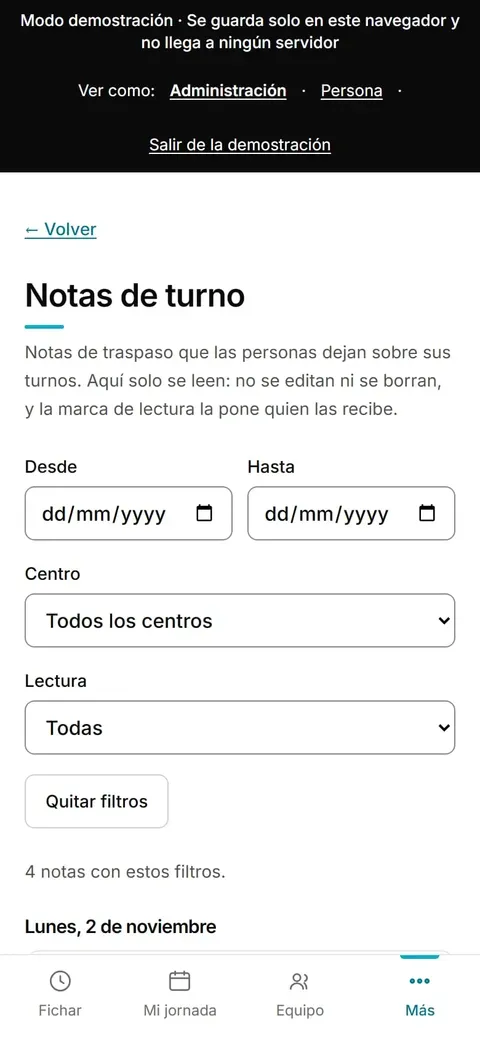
Phone screen with the list of shift notes left by other people. (mobile version, sample data)

More

Status: Available

Everything else, arranged by what you want to do: absences, notices, your rights, checking a receipt, announcements and calendar.
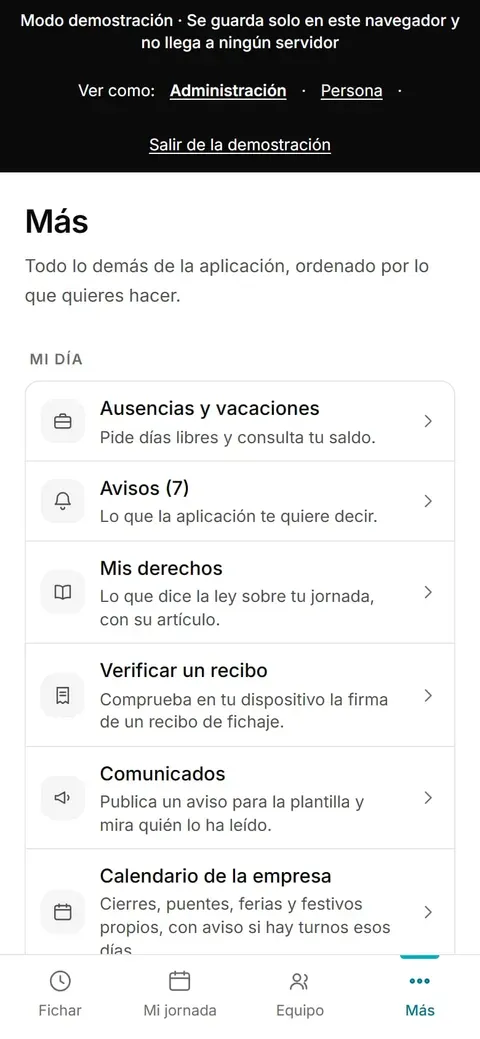
Screen «Más» (more) on the phone, with a list of shortcuts: absences, notices, rights, verifying a receipt, announcements and calendar. (mobile version, sample data)

I want to request holidays

Ask for days off without paperwork

You request the days, see how many you have left and the company answers on the same screen.

Absences and holidays

Status: Available

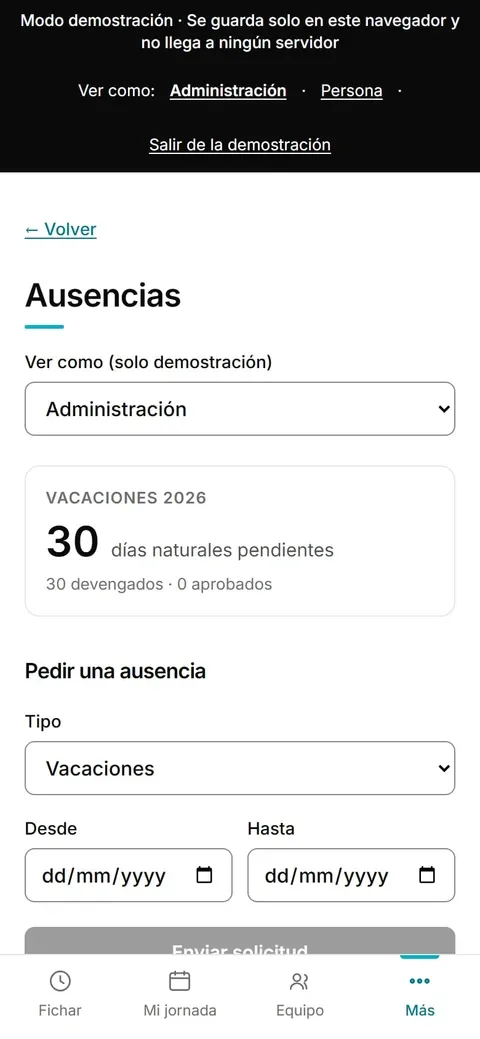
You request days off and check your balance. The company approves or rejects. What is approved goes by itself into the schedule and the month-end closing.
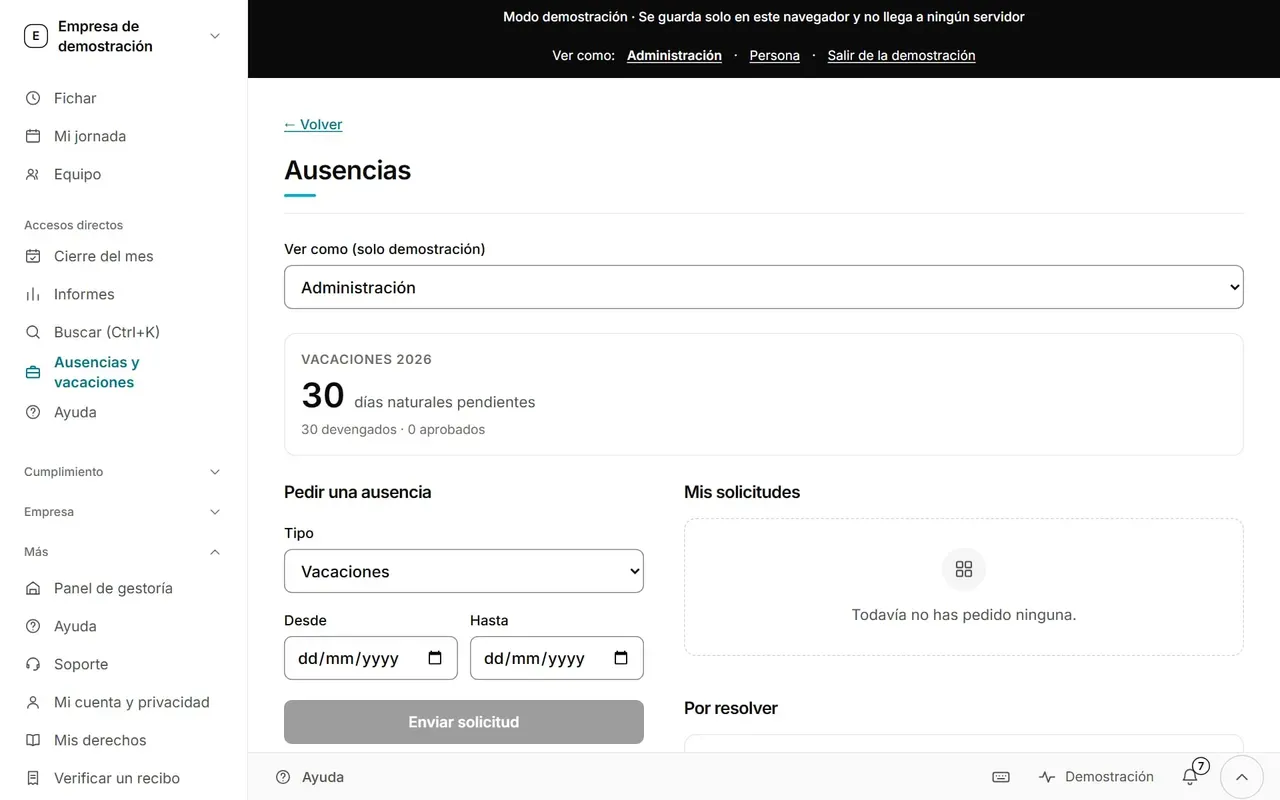
Screen «Ausencias» (absences): 2026 holidays with 30 calendar days pending, a form to request an absence (type, from and to dates, button «Enviar solicitud» – send request) and the lists «Mis solicitudes» (my requests) and «Por resolver» (to be resolved). (desktop version, sample data)
Screen «Ausencias» (absences): 2026 holidays with 30 calendar days pending, a form to request an absence (type, from and to dates, button «Enviar solicitud» – send request) and the lists «Mis solicitudes» (my requests) and «Por resolver» (to be resolved). (mobile version, sample data)

I want to organise shifts

Organise shifts and hours

For whoever assigns the work: see who goes when, get warned of problems before publishing and record hours owed in either direction.

Weekly schedule

Status: Available

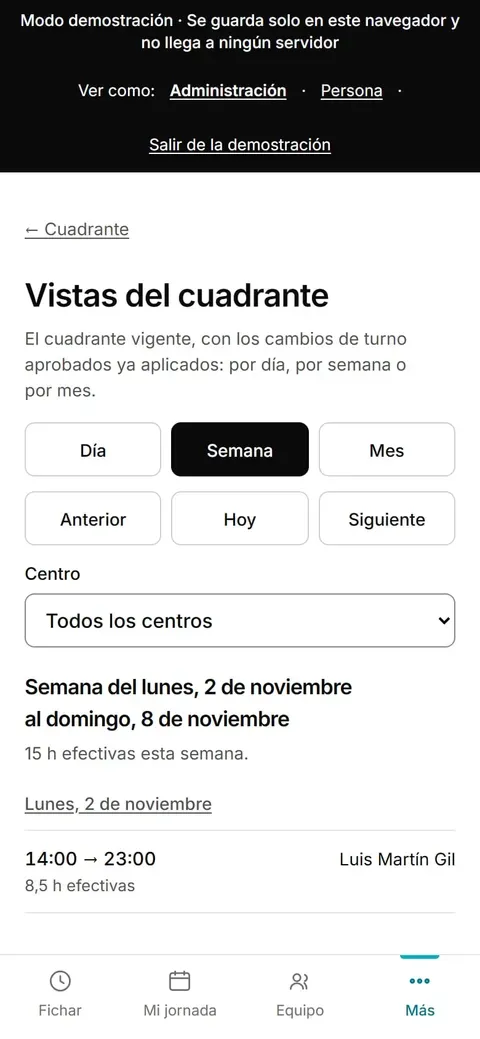
Each person’s shifts, day by day. When you publish the week, everyone sees theirs on their phone. It flags missing rest periods, overlapping shifts and days that are too long.
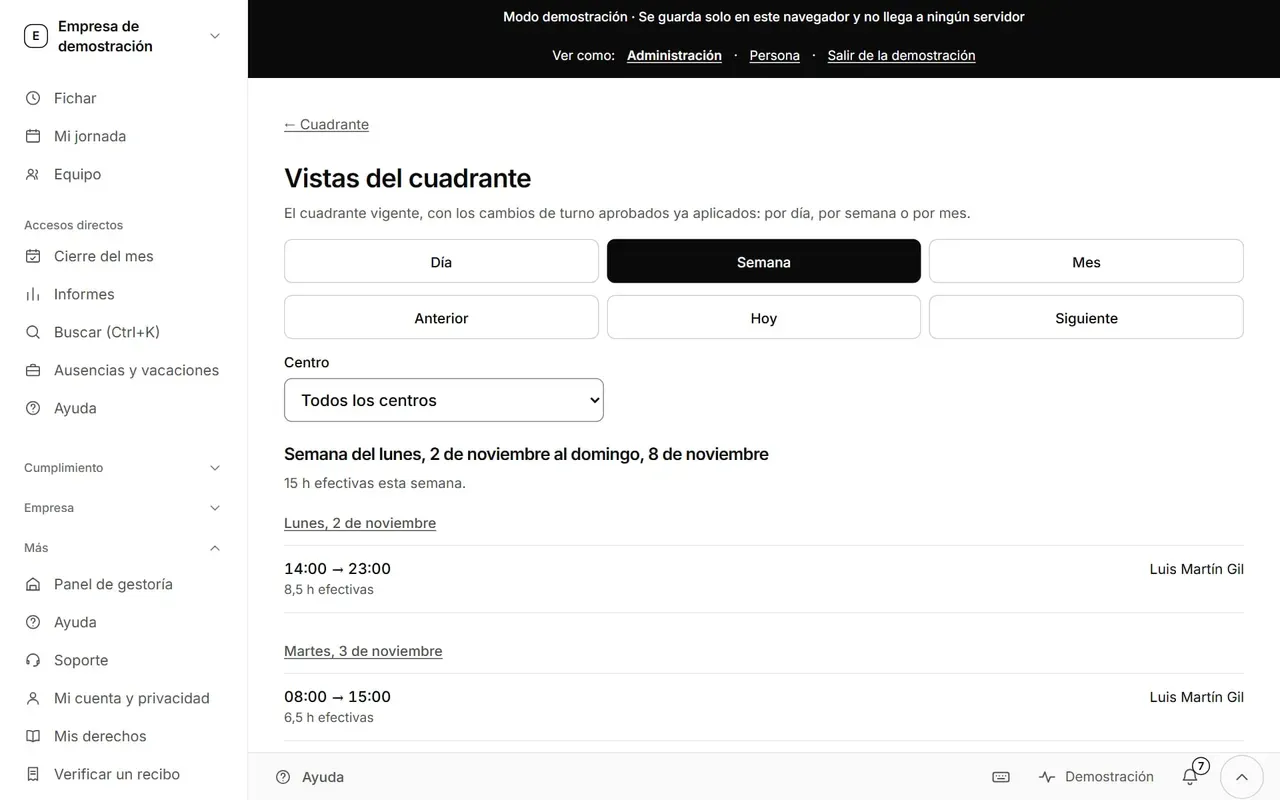
Screen «Vistas del cuadrante» (schedule views) on the computer, with the buttons Día (day), Semana (week) and Mes (month), the centre selector and the list of shifts for the week of 2 to 8 November, with their hours and the effective hours. (desktop version, sample data)
Screen «Vistas del cuadrante» (schedule views) on the computer, with the buttons Día (day), Semana (week) and Mes (month), the centre selector and the list of shifts for the week of 2 to 8 November, with their hours and the effective hours. (mobile version, sample data)

Monthly schedule

Status: Available

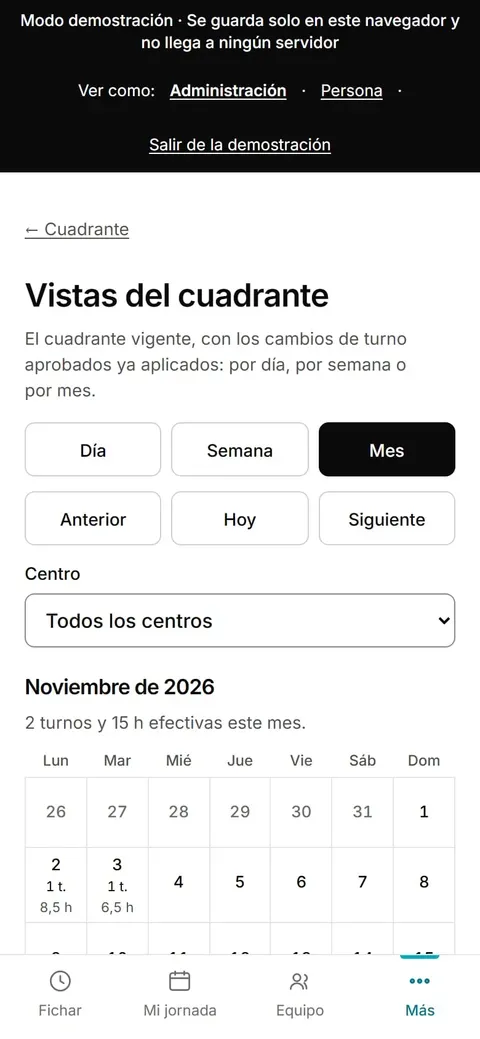
The same planning seen over a whole month: who works, who is off and where hands are missing. For adjusting before publishing.
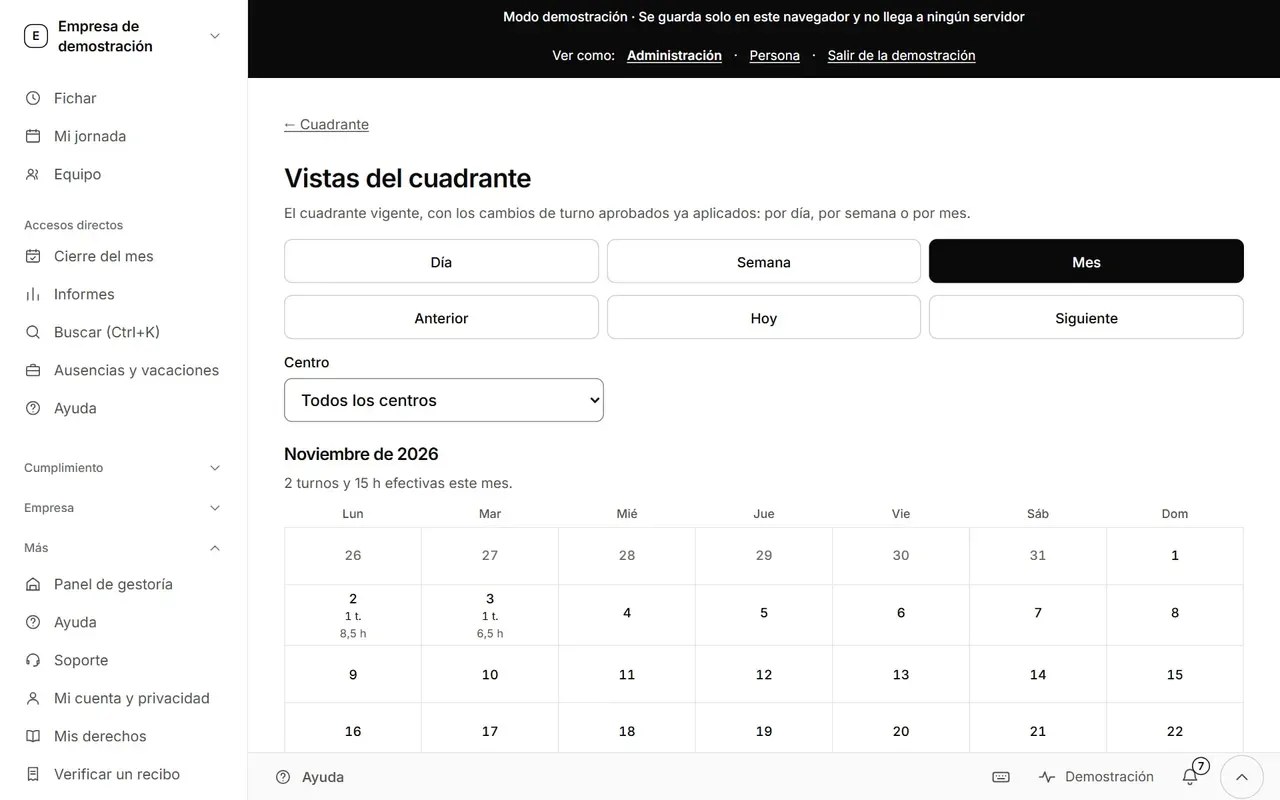
Monthly schedule with the days of the month and each person’s shifts. (desktop version, sample data)
Monthly schedule with the days of the month and each person’s shifts. (mobile version, sample data)

Hours bank

Status: Available

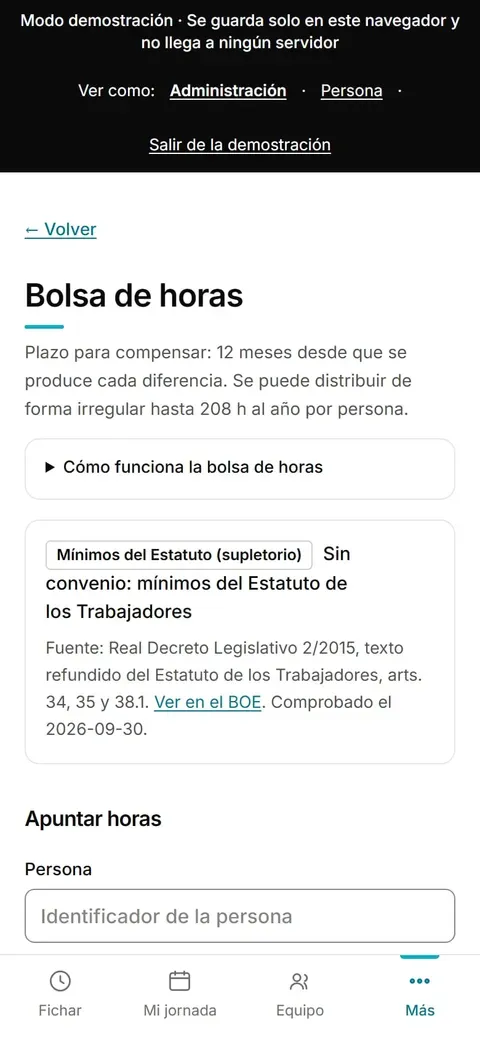
You record the hours a person owes or is owed and see the deadline to compensate them (12 months in the demo). If there is no collective agreement, the minimums of the Estatuto apply, and the screen shows you the source with a link to the BOE.
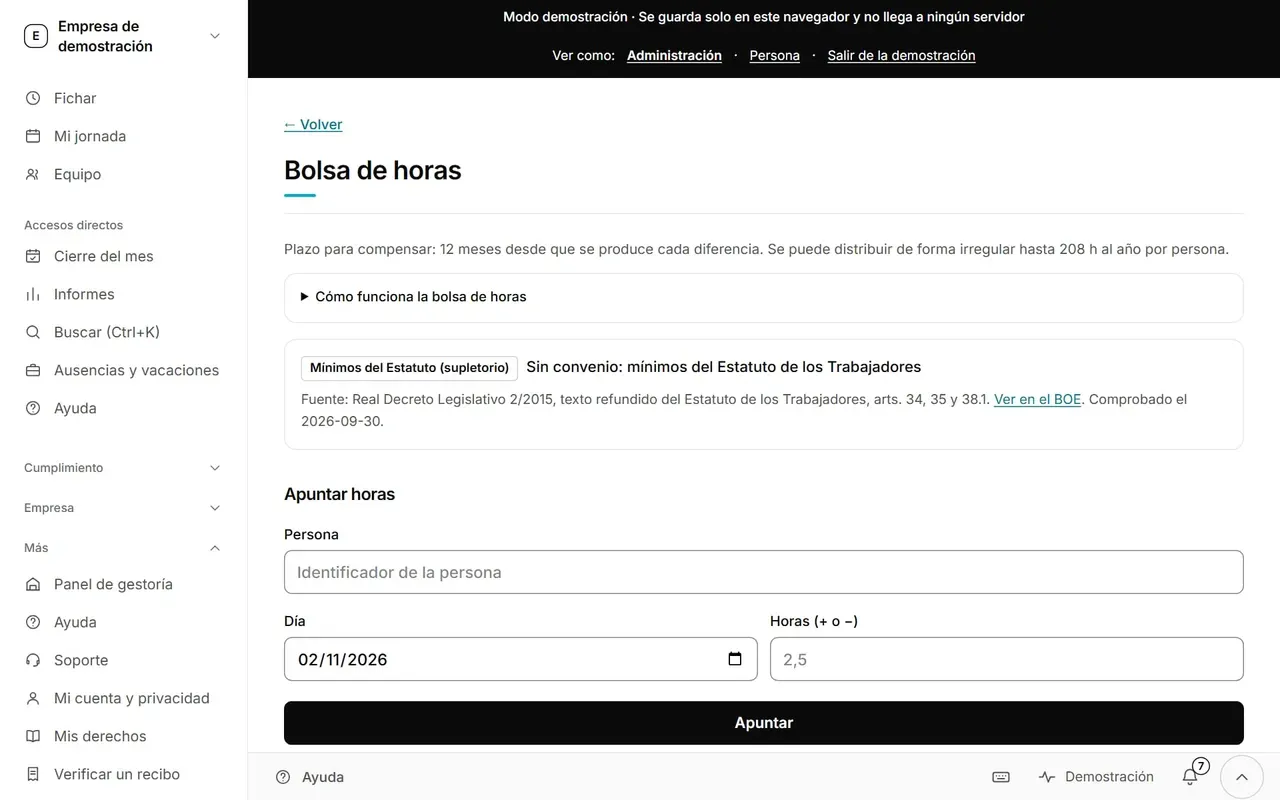
Screen «Bolsa de horas» (hours bank): a 12-month deadline to compensate, a note that without a collective agreement the minimums of the Estatuto de los Trabajadores apply (with a link to the BOE), and a form to record hours. (desktop version, sample data)
Screen «Bolsa de horas» (hours bank): a 12-month deadline to compensate, a note that without a collective agreement the minimums of the Estatuto de los Trabajadores apply (with a link to the BOE), and a form to record hours. (mobile version, sample data)

Proposals for the hours bank

Status: Available

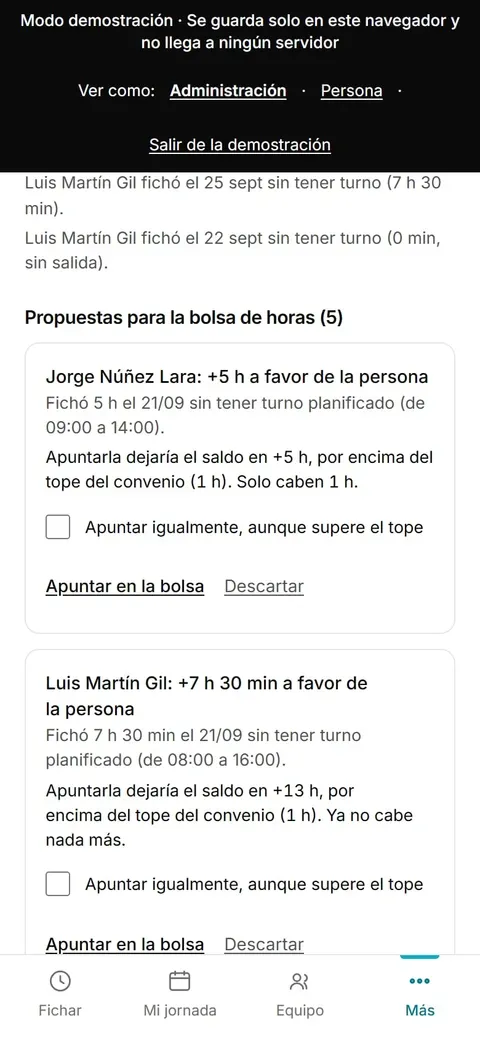
It detects clock-ins in hours with no planned shift and proposes recording them in the hours bank. It records nothing until someone confirms it.
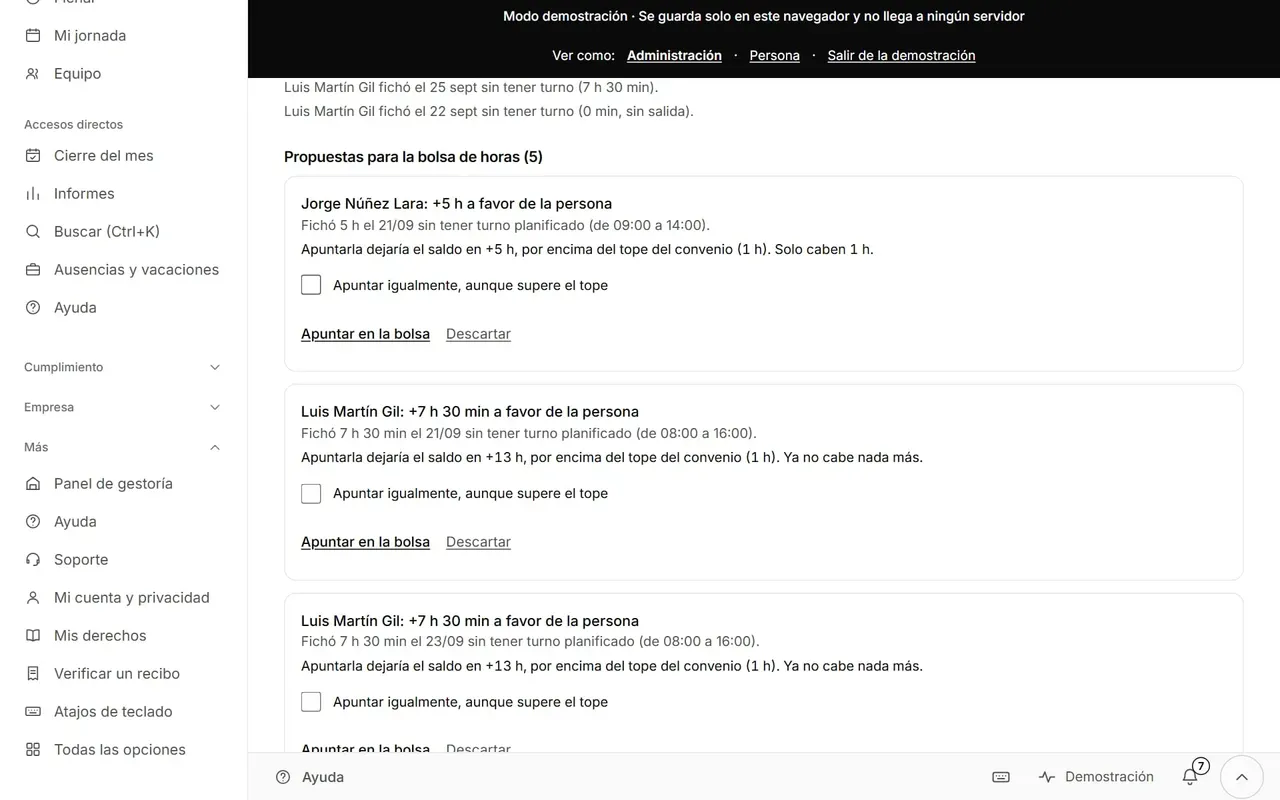
Screen with the proposed entries for the hours bank, each with its button to confirm it. (desktop version, sample data)
Screen with the proposed entries for the hours bank, each with its button to confirm it. (mobile version, sample data)

Adjusting the company to the collective agreement

Status: Available

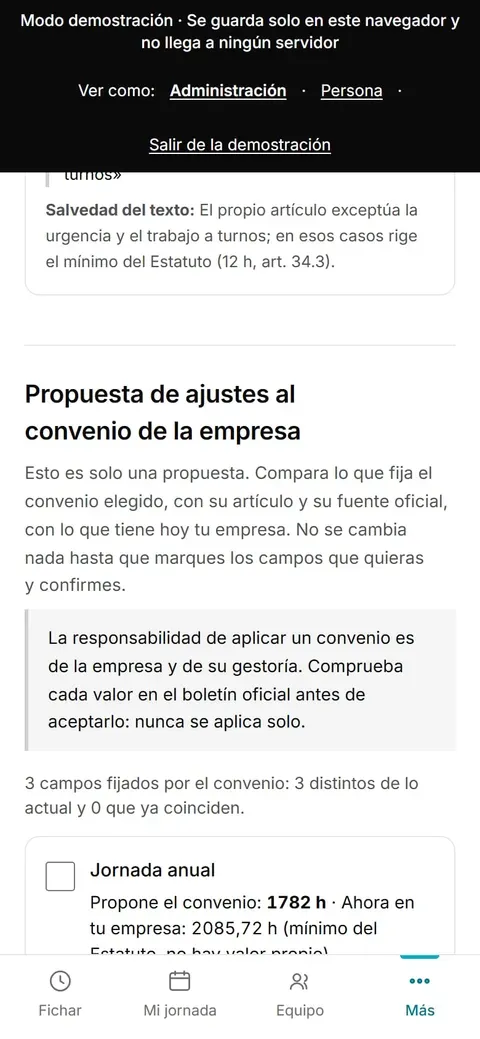
It compares what your collective agreement says (with its article and the date it was checked) with what the company has set up. It changes nothing until you tick the fields and confirm.
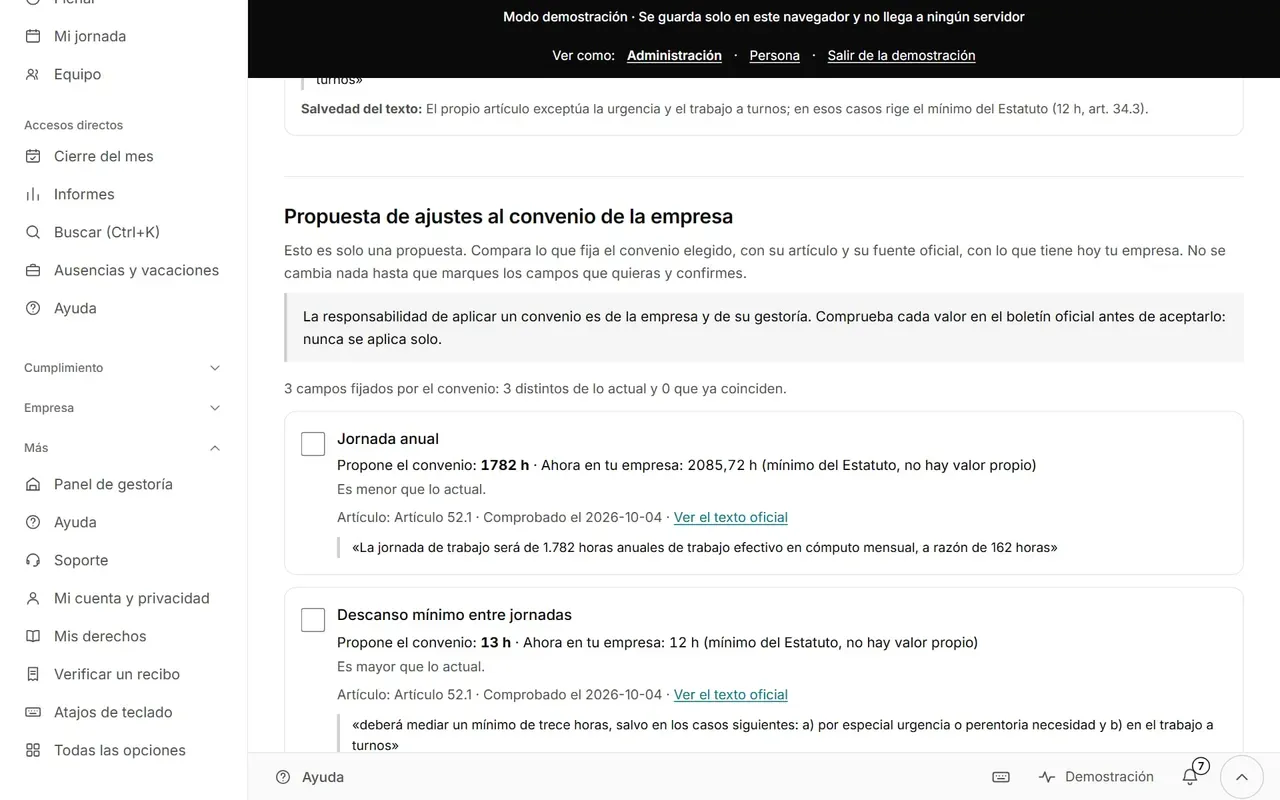
Screen with the proposed adjustments: a table comparing each value of the agreement with the company’s, and checkboxes to choose what to apply. (desktop version, sample data)
Screen with the proposed adjustments: a table comparing each value of the agreement with the company’s, and checkboxes to choose what to apply. (mobile version, sample data)

I want to close the month

Close the month step by step

Review, correct, close and sign. And pass the data to the gestoría without copying numbers by hand.

Month-end closing and signing

Status: Available

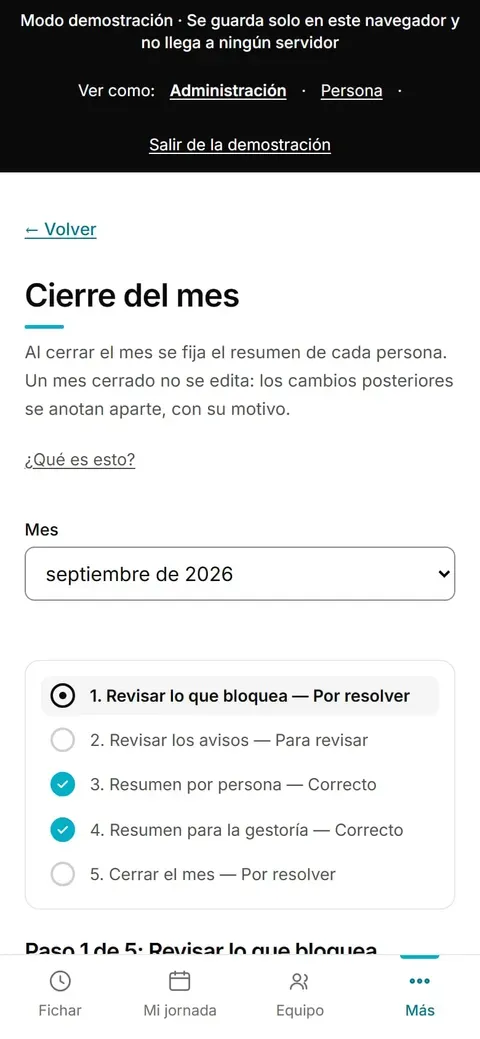
Five guided steps: what blocks, the warnings, each person’s summary, the summary for the gestoría and the closing. A closed month is not edited: later changes are recorded separately, with their reason.
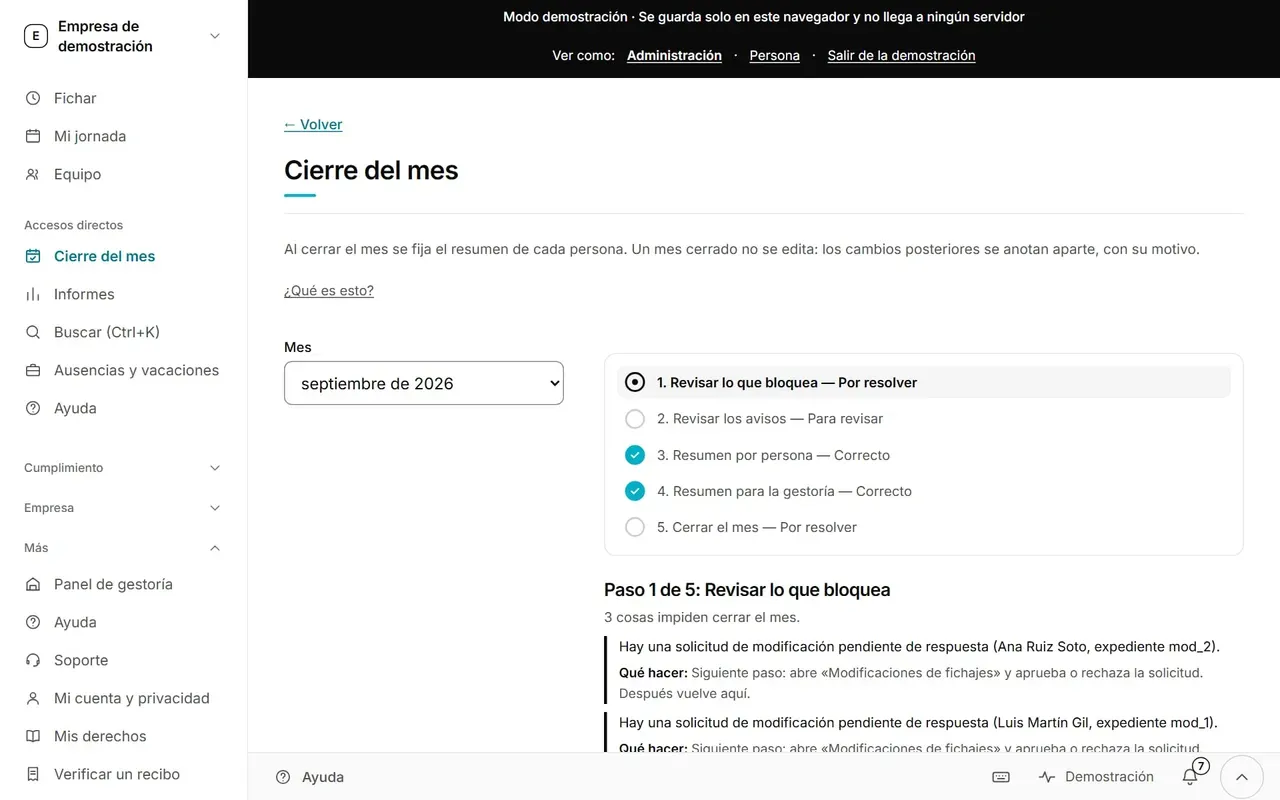
Screen «Cierre del mes» (month-end closing) with the list of five steps, some marked as correct and others still to resolve, and the detail of step 1 with the things that prevent closing. (desktop version, sample data)
Screen «Cierre del mes» (month-end closing) with the list of five steps, some marked as correct and others still to resolve, and the detail of step 1 with the things that prevent closing. (mobile version, sample data)

Reports

Status: Available

Files ready for the gestoría, for the workers’ representatives or for the Labour Inspectorate: CSV to open in Excel and a PDF per person.
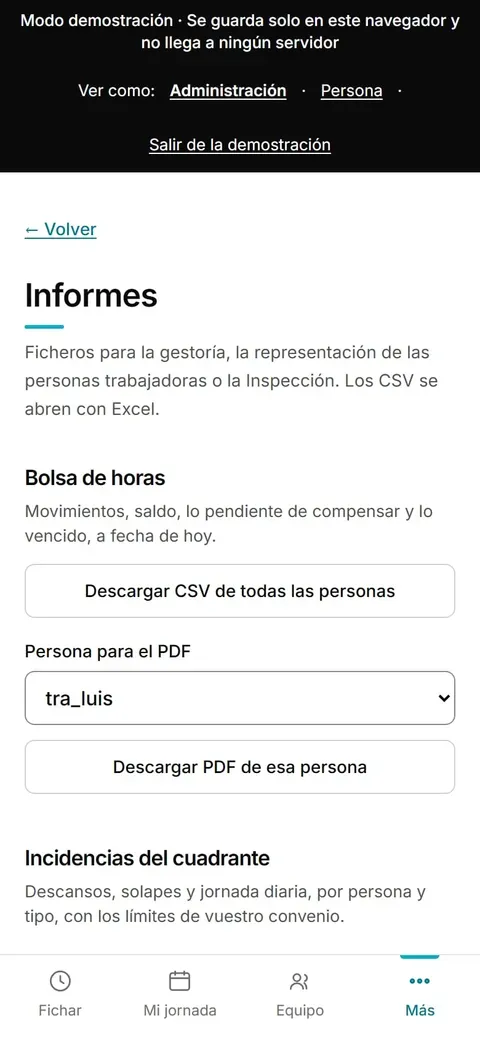
Reports screen on the phone, with the files that can be downloaded as CSV and PDF. (mobile version, sample data)

Gestoría dashboard

Status: Available

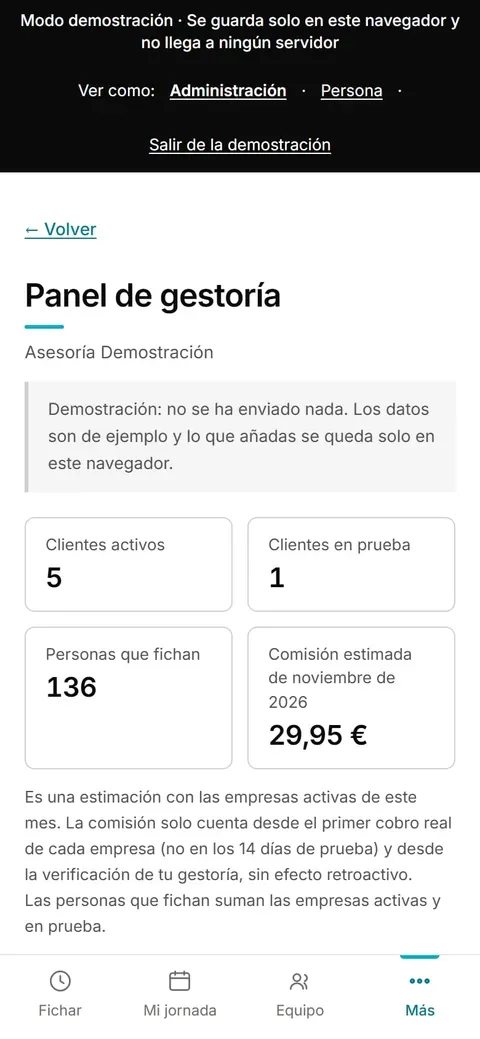
A gestoría sees on a single screen all the companies it handles: open incidents, month-end closings pending and compliance warnings. The commission shown in the screenshot is built but switched off.
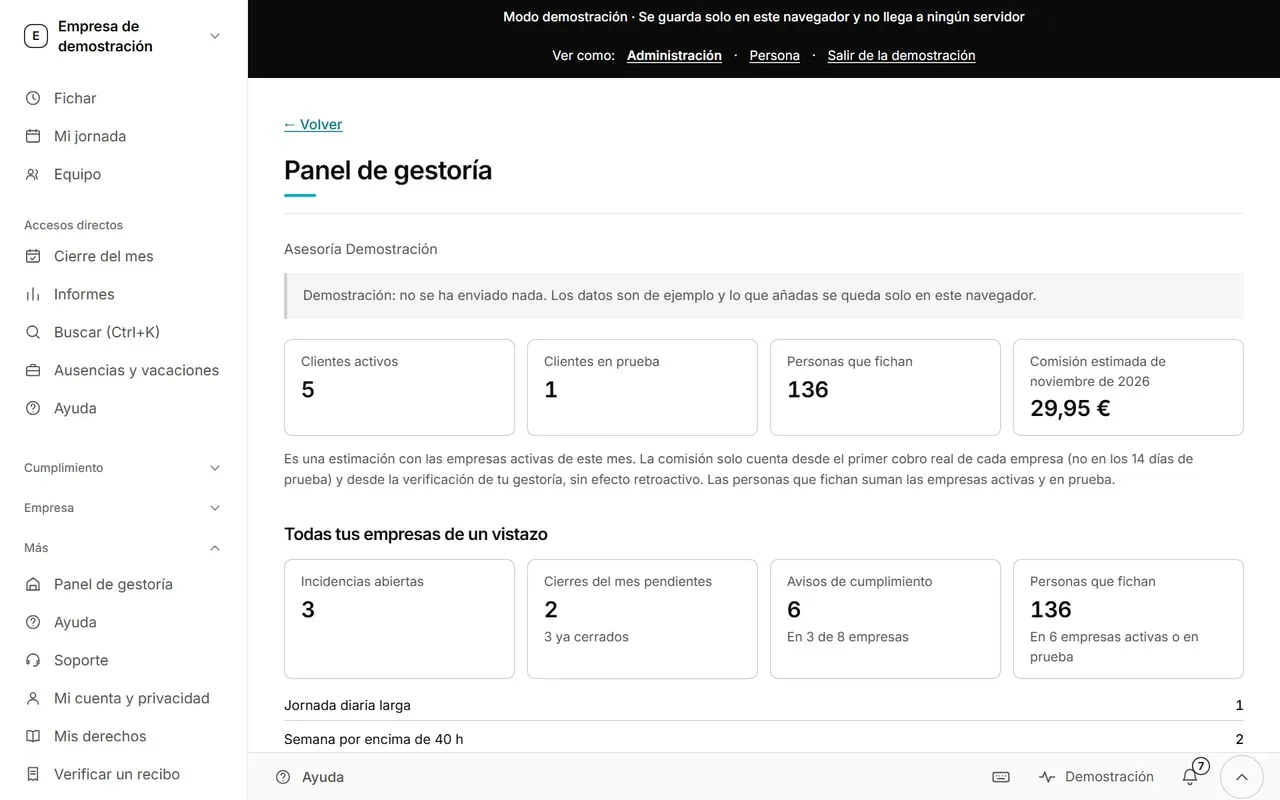
Gestoría dashboard: cards with the number of active and trial clients, people who clock in, open incidents, pending month-end closings and compliance warnings across all its companies. (desktop version, sample data)
Gestoría dashboard: cards with the number of active and trial clients, people who clock in, open incidents, pending month-end closings and compliance warnings across all its companies. (mobile version, sample data)

I want to go through an inspection

If the Inspectorate comes

Show the record without handing over passwords and know before the visit what needs fixing.

Labour Inspectorate access

Status: Available

A read-only link to show the record during a visit. It hands over no passwords, allows no changes, expires on the date you set and can be cancelled whenever you like. Every access is logged.
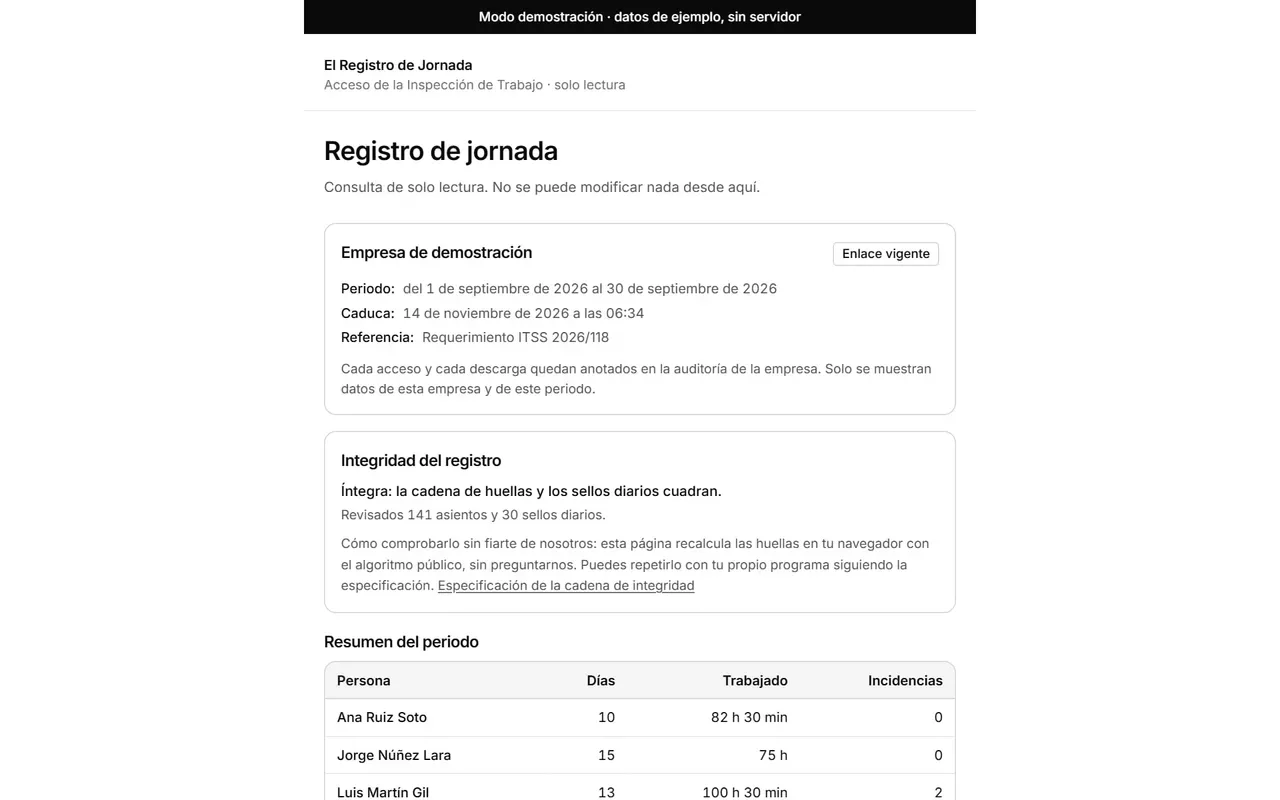
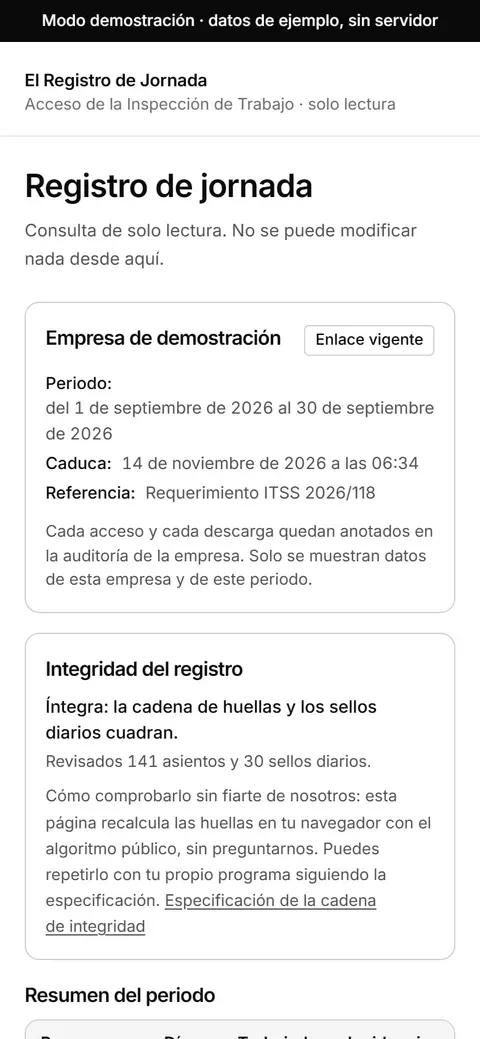
Read-only view for the Inspección de Trabajo (Labour Inspectorate): period consulted, the link’s expiry date, a check that the record’s integrity chain adds up, and a table with the days, hours worked and incidents of each person. (desktop version, sample data)
Read-only view for the Inspección de Trabajo (Labour Inspectorate): period consulted, the link’s expiry date, a check that the record’s integrity chain adds up, and a table with the days, hours worked and incidents of each person. (mobile version, sample data)

Compliance report

Status: Available

It checks a week point by point: rest between working days, daily hours, weekly hours and weekly rest. Each point says «cumple» (meets), «incumple» (does not meet) or «a revisar» (to review) and cites its article, so you can correct before anyone asks. It is an indicative check: a collective agreement may set other limits.
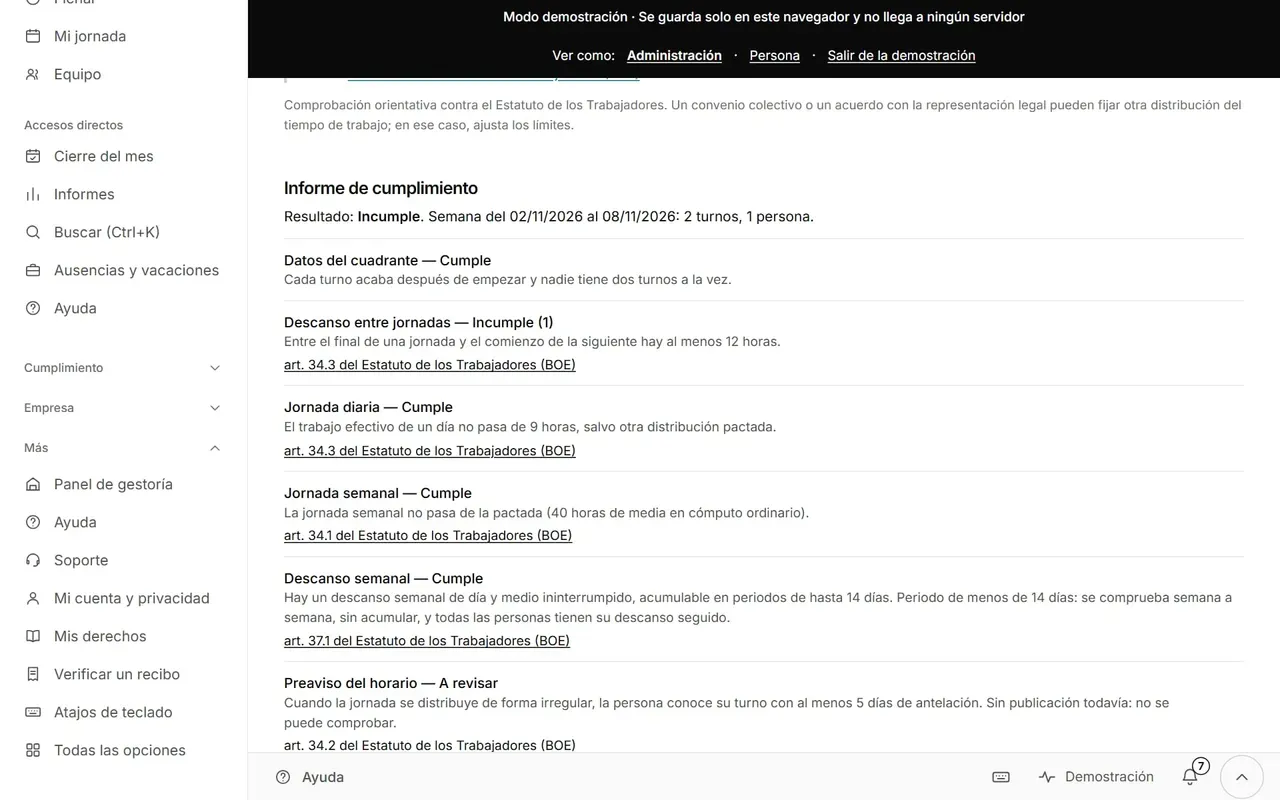
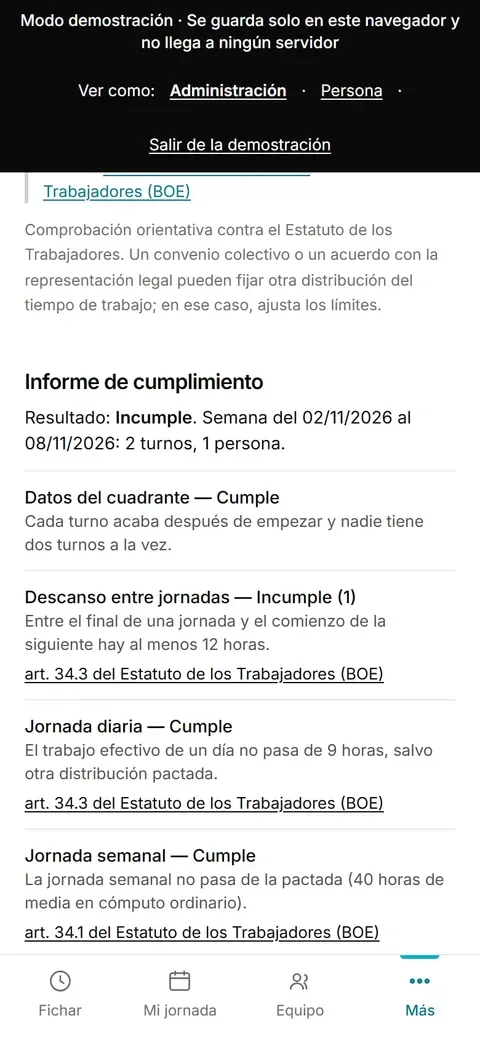
Compliance report for one week: list of checks, each with its result (cumple, incumple or a revisar), its explanation and the article of the Estatuto de los Trabajadores with a link to the BOE. (desktop version, sample data)
Compliance report for one week: list of checks, each with its result (cumple, incumple or a revisar), its explanation and the article of the Estatuto de los Trabajadores with a link to the BOE. (mobile version, sample data)

I want to connect other programs

Connect with other programs

So that what happens in the app reaches another company program by itself. These two screens exist in the code, but cannot be bought yet.

Integrations and API

Status: Not published

Keys so that other company programs (payroll, for example) can read data. Read-only today. Each key can only do what you grant it and can be revoked.
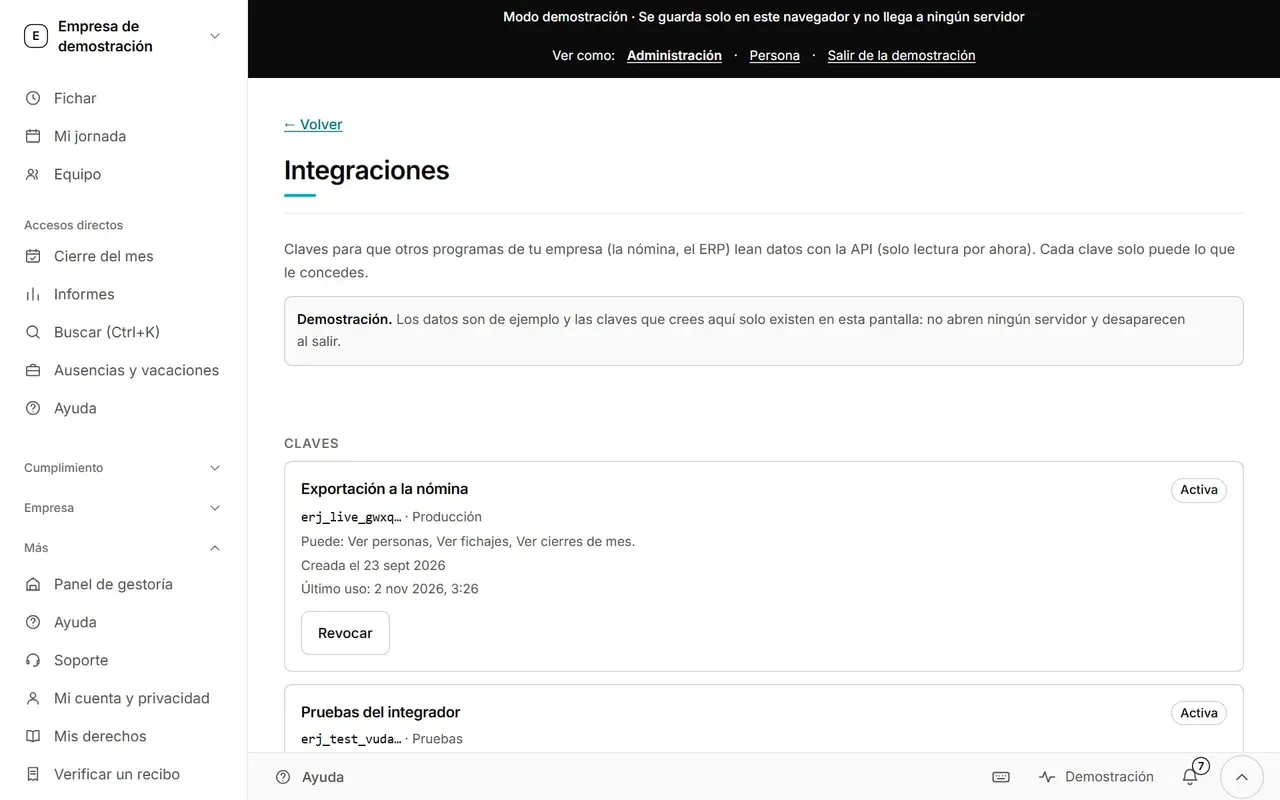
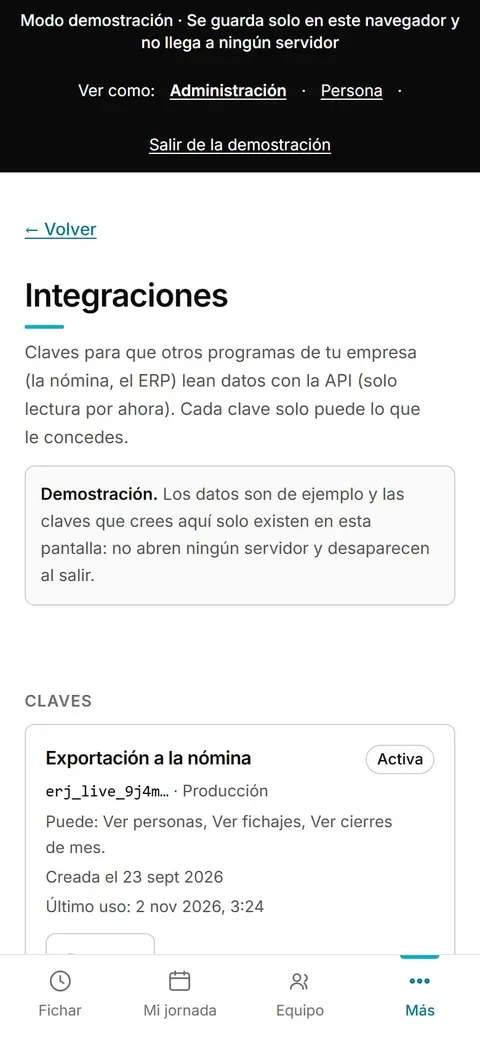
Screen «Integraciones» (integrations): access keys for other programs, each with its name, the permissions it has (see people, clock-ins, month-end closings), creation date, last use and a «Revocar» (revoke) button. (desktop version, sample data)
Screen «Integraciones» (integrations): access keys for other programs, each with its name, the permissions it has (see people, clock-ins, month-end closings), creation date, last use and a «Revocar» (revoke) button. (mobile version, sample data)

Automatic notices (webhooks)

Status: Not published

They notify another system when something happens, for example an approved absence or a closed month. Each notice carries only identification numbers and dates, never names or NIF, and is signed with a secret shown only once.
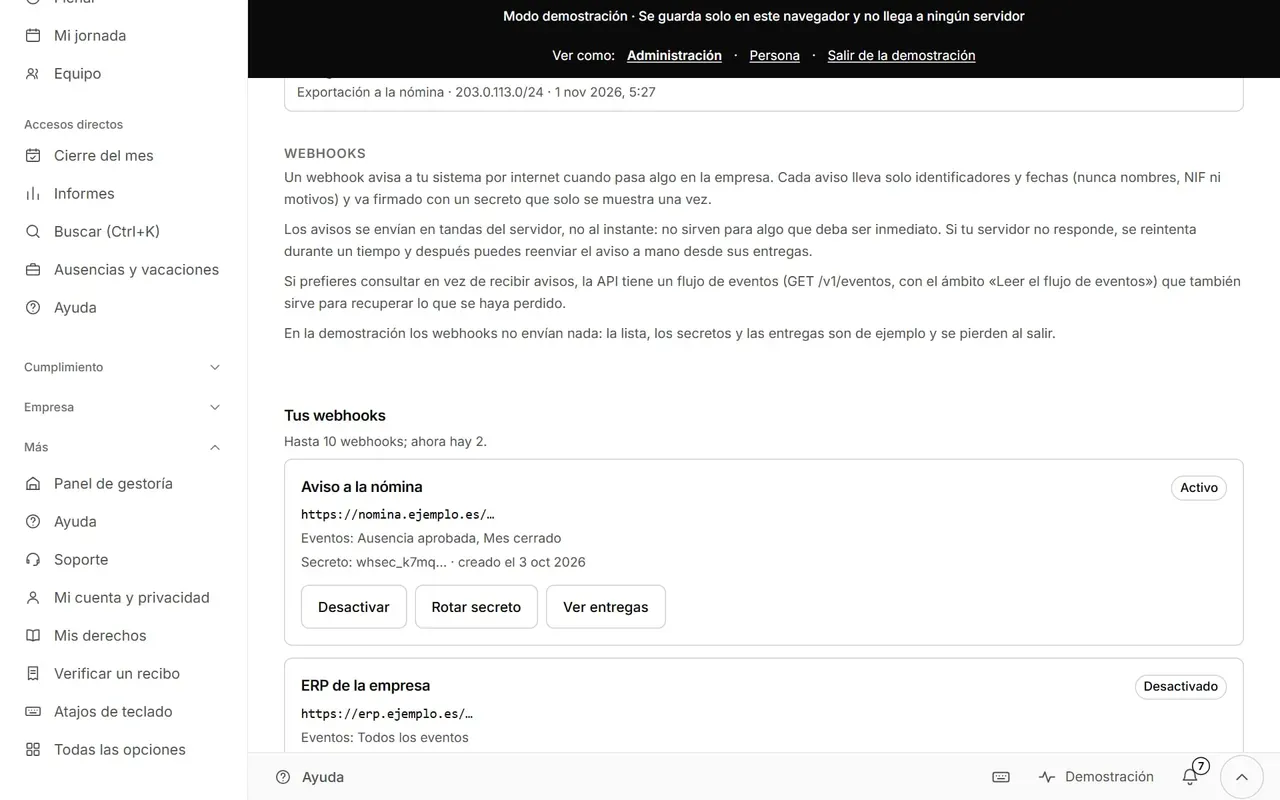
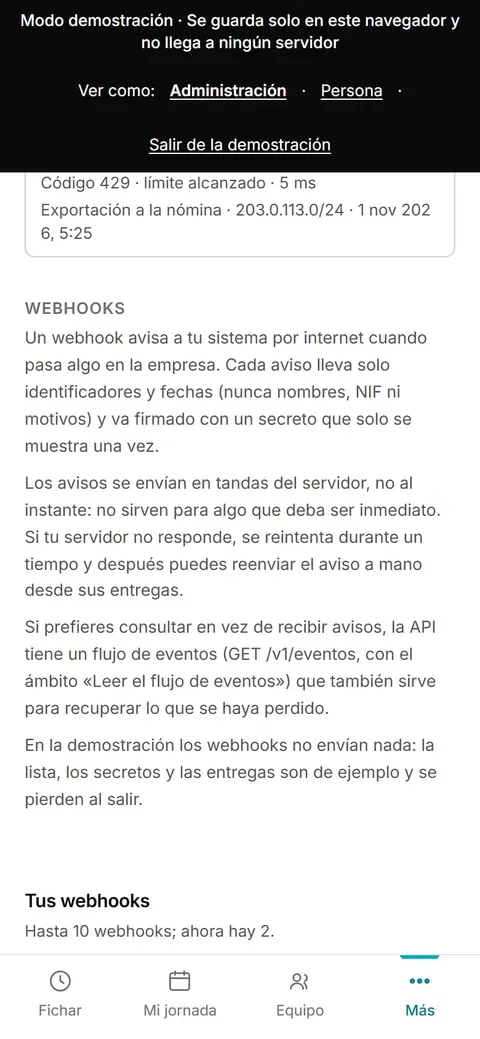
Webhooks screen, with the list of notice destinations, the events they send and the signing secret. (desktop version, sample data)
Webhooks screen, with the list of notice destinations, the events they send and the signing secret. (mobile version, sample data)

I want to control my data

Your data, your decision

The person chooses how to see the app and can close their access. The company does not decide this for them.

My account and privacy

Status: Available

You choose light, dark or automatic, the language and the text size. You also see your personal data and the legal documents.
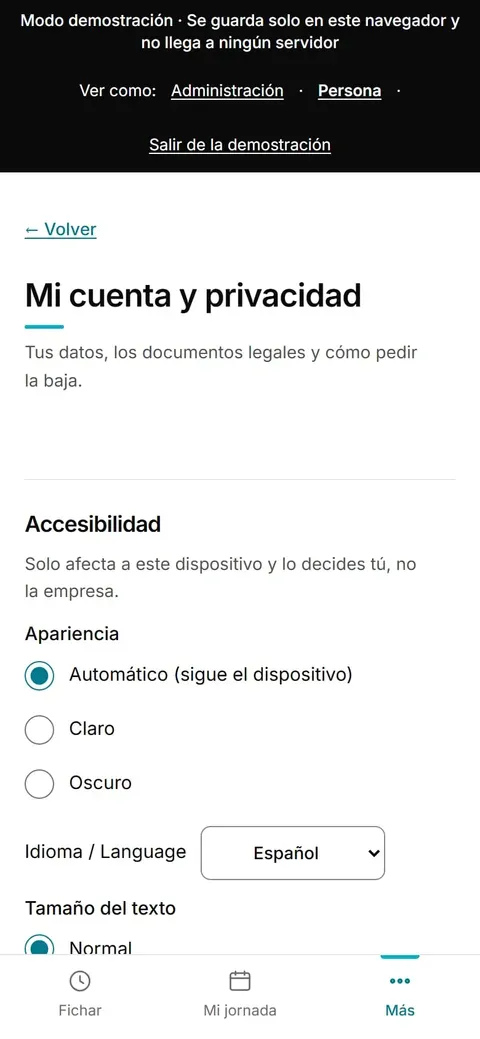
Screen «Mi cuenta» (my account) on the phone with the options for appearance, language, text size, personal data and legal documents. (mobile version, sample data)

Close my access and request deletion

Status: Available

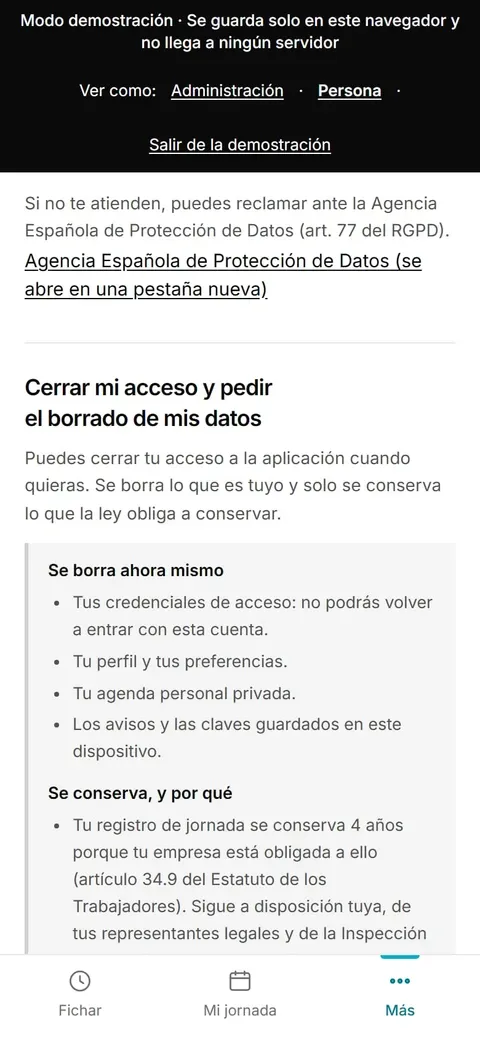
It explains what is deleted now (access, profile and private agenda) and what is kept and why: the working-time record, four years.
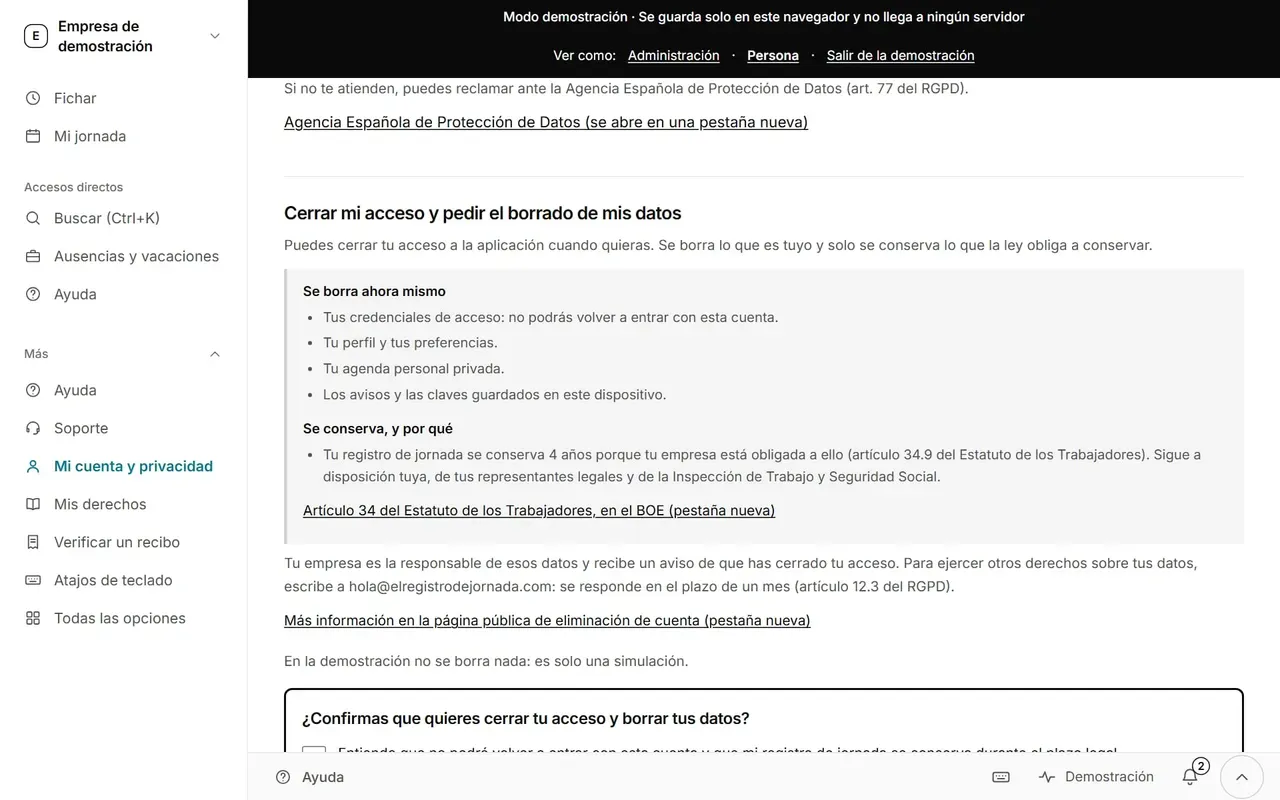
Screen to close access and request data deletion, with the list of what is deleted and what is kept. (desktop version, sample data)
Screen to close access and request data deletion, with the list of what is deleted and what is kept. (mobile version, sample data)

And what you cannot see

What does not exist yet

The iOS and Android apps and the Apple Watch are in preparation: today it is used from the browser, on your phone or your computer. The mobile app page explains it in detail.

There will never be clocking in by fingerprint or face either. We explain why in why the fingerprint stopped being a good idea (in Spanish).

Free until 31 May 2027. Just your email.

No card and no billing details: your email is all you need to start. You register your team in five minutes and you clock in today.